
Access real-time, historical, and end-of-day financial data. Developer-first APIs, SDKs, MCP server and more.
Get startedHow to Run the YOLO11 Object Detection Model Locally with Python
A practical walkthrough using images and videos in Jupyter Notebook
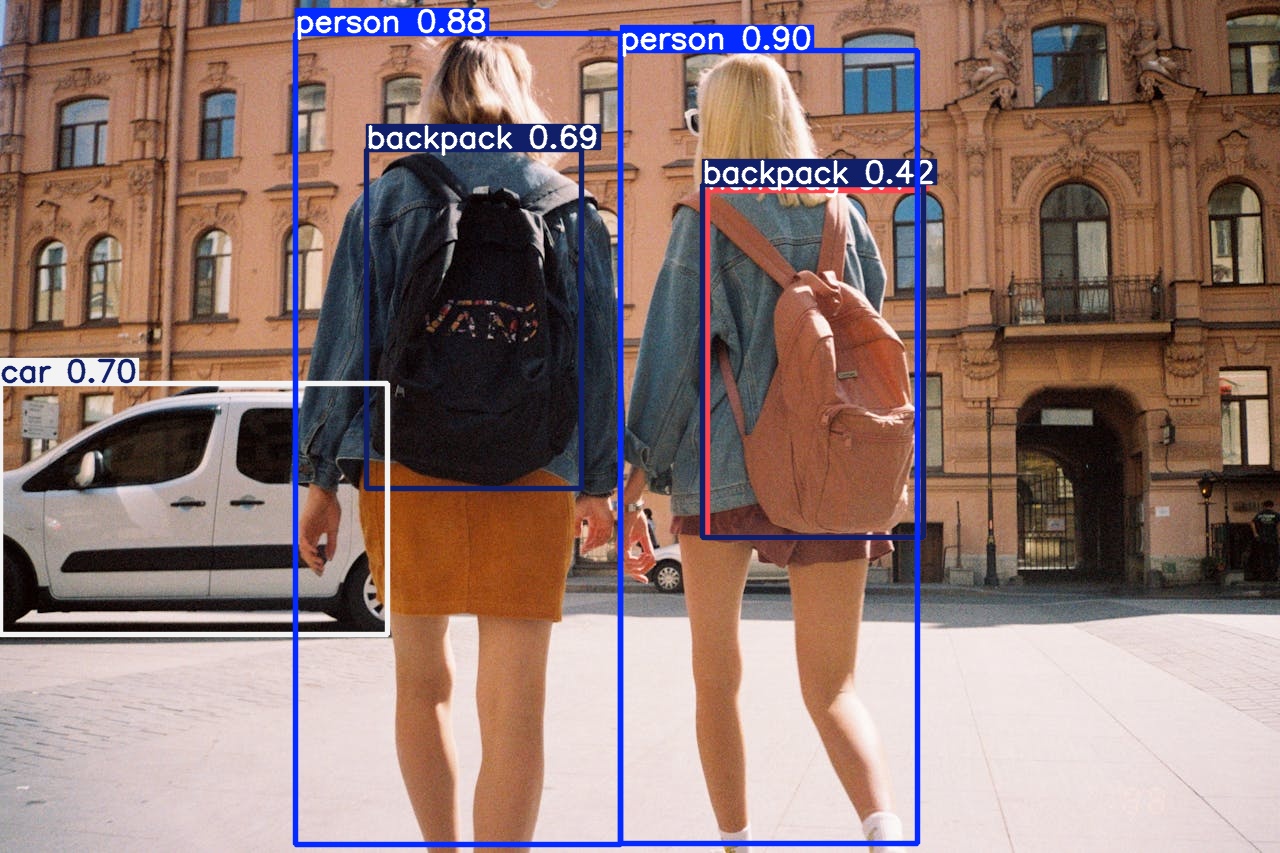
Object detection has moved from being a research concept to a hands-on tool that anyone with a laptop can explore.
With the latest Ultralytics YOLO models, setting up an experiment is simple, and you can get detection results on your own images and videos in just a few lines of code.
In this article, I’ll walk through a notebook workflow that loads a YOLO model, runs predictions, and visualizes the outputs.
Installing and Importing the Essentials
All the code in this guide is hosted in this public GitHub Repository.
The first step is to install the Ultralytics package and bring in the necessary libraries. In a notebook, this is done with:
%pip install ultralytics --quiet Once installed, the imports include the YOLO class for inference, Matplotlib for visualization, and os for file handling.
from ultralytics import YOLO
import matplotlib.pyplot as plt
import matplotlib.image as mpimg
import os
Loading a Pretrained Model
Ultralytics provides official pretrained YOLO models that are ready to use out of the box. Here I’m loading the lightweight yolo11n.pt, which is designed for fast testing. You can explore all the available pretrained models on the Ultralytics website:
# Load a model
model = YOLO("yolo11n.pt")  # load an official model
This model is small but powerful enough to detect common objects with good accuracy.
Running Detection on an Image
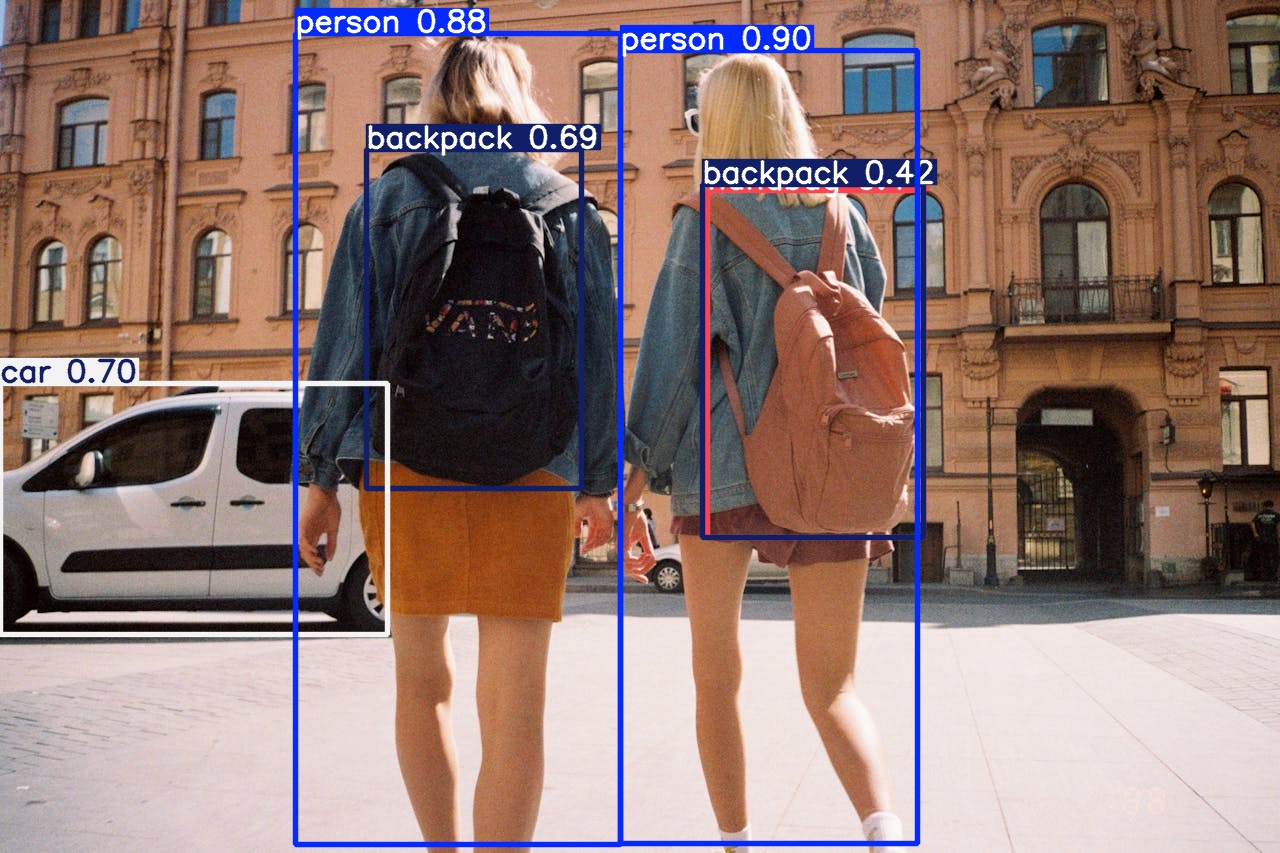
With the model loaded, we can run it on a test image. In this example, the image is named car_girls.jpg and stored inside a tasks/detection/ folder.
image_name = "car_girls.jpg"

# Predict with the model
results = model(
    f"tasks/detection/{image_name}",
    save=True,
    project="tasks/detection/outputs",
)
The save=True parameter ensures that YOLO writes the output image, with bounding boxes drawn, into the specified project folder.
Accessing and Displaying Detection Results
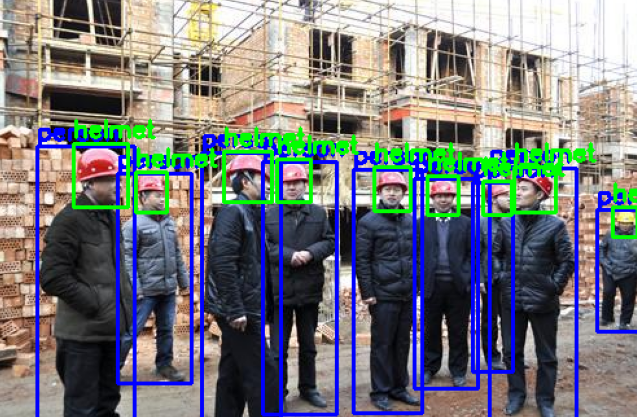
YOLO doesn’t just draw boxes, it also returns precise coordinates and class information for each detected object. Here’s how you can extract bounding box data and display the saved annotated image inside the notebook:
for result in results:
    xywh = result.boxes.xywh     # center-x, center-y, width, height
    xywhn = result.boxes.xywhn   # normalized
    xyxy = result.boxes.xyxy     # top-left-x, top-left-y, bottom-right-x, bottom-right-y
    xyxyn = result.boxes.xyxyn   # normalized
    names = [result.names[cls.item()] for cls in result.boxes.cls.int()]
    confs = result.boxes.conf    # confidence scores

    saved_path = os.path.join(result.save_dir, image_name)  # path to saved image

    # Load and display image
    img = mpimg.imread(saved_path)
    plt.figure(figsize=(10, 8))
    plt.imshow(img)
    plt.axis("off")
    plt.show()
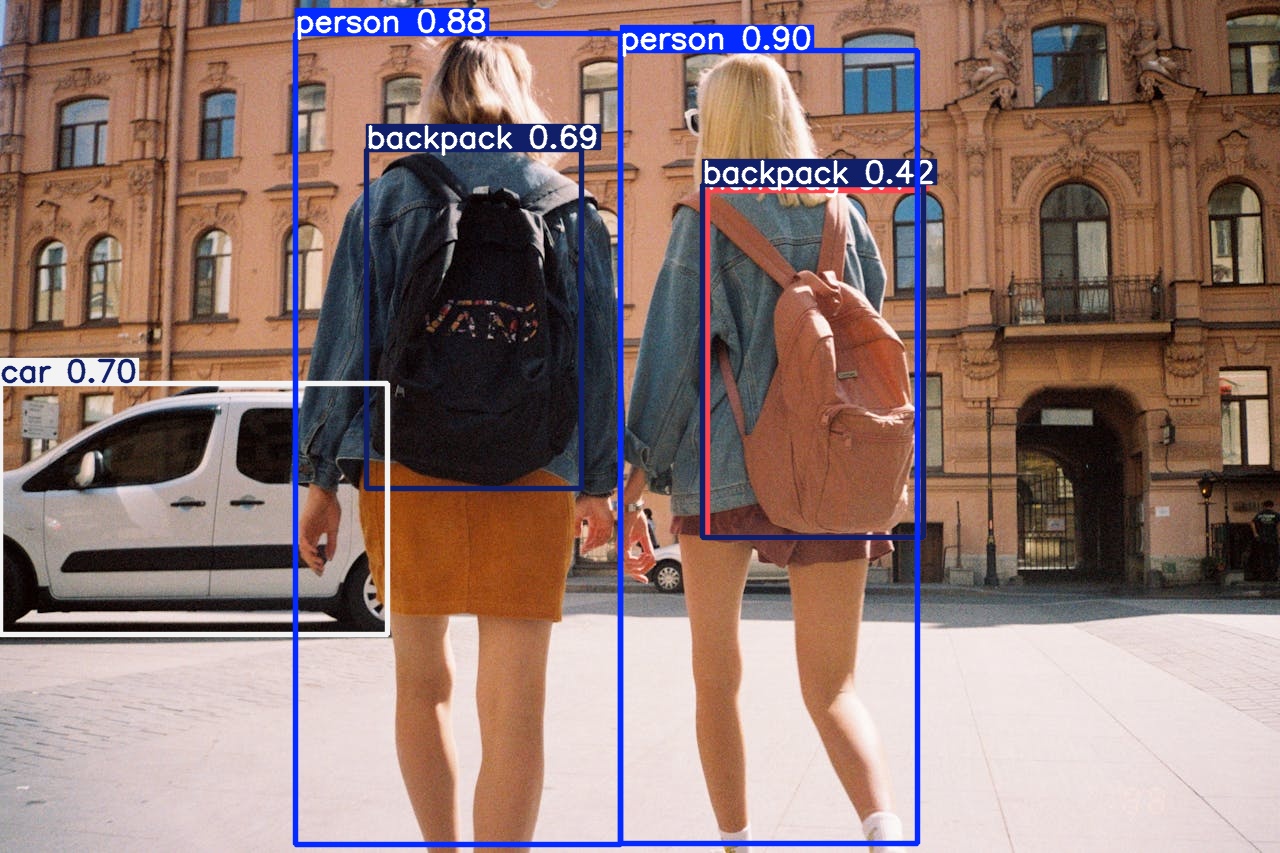
This gives both the numerical detections and a visual confirmation directly in the notebook. Learn more about the YOLO annotation format.
Extending Detection to Videos
The same workflow applies to videos. Here, I tested the model on a video file I named city_people.mp4 from Huu Huynh on Pexels.
video_name = "city_people.mp4"

# Predict with the model
results = model(
    f"tasks/detection/{video_name}",
    save=True,
    project="tasks/detection/outputs",
)
YOLO processes each frame of the video and saves an annotated version in the output folder.
Inspecting Video Predictions
You can also inspect the detection data from video frames just as you would with images.
# Access the results
for result in results:
    xywh = result.boxes.xywh
    xywhn = result.boxes.xywhn
    xyxy = result.boxes.xyxy
    xyxyn = result.boxes.xyxyn
    names = [result.names[cls.item()] for cls in result.boxes.cls.int()]
    confs = result.boxes.conf
This provides both structured data and the path to the processed video file.
The pretrained YOLO11 model comes with a set of common object classes, but its scope is limited. If you want to detect objects outside of those predefined categories, you’ll need to fine-tune the model on your own dataset. For a practical example, see my article on fine-tuning a YOLO11 object detection model for kidney stone detection.
A Practical Takeaway
Working with YOLO inside a notebook makes object detection accessible, visual, and interactive. You can move from raw data to bounding boxes in just a few lines of code, while still having full access to the detection metadata. The same setup works whether you’re testing with a single image or running predictions on entire videos.
This workflow is not only useful for quick experimentation but also forms a foundation for more advanced projects, from dataset exploration to model fine-tuning.
Read More
Read more articles on the topics that interest you

How to Use ChatGPT to Find a Job in South Africa: 6 Steps
Use AI to sharpen your CV, target local vacancies and prepare for interviews
Become a Software Developer in South Africa: 6 Steps
Choose a learning route, build proof of skill and plan for your first role
Solar Cost for Small Businesses in South Africa: Ranges
See what different system sizes include, where extra costs hide, and how to compare quotes

How to Buy Bitcoin in South Africa Legally in 5 Steps
Choose a provider, pay in rand, check the costs and keep tax records

How to Build a Full-Stack Web App With AI in 7 Steps
Adapt a starter project, then use AI to build, test and launch your first working version
Best AI Website Builders for Beginners in 2026: 5 Picks
Compare easy site creation, online selling, costs and the trade-offs before you choose