
How to Record Your Screen on Windows, Mac, and Mobile
Simple steps for clear, reliable screen captures
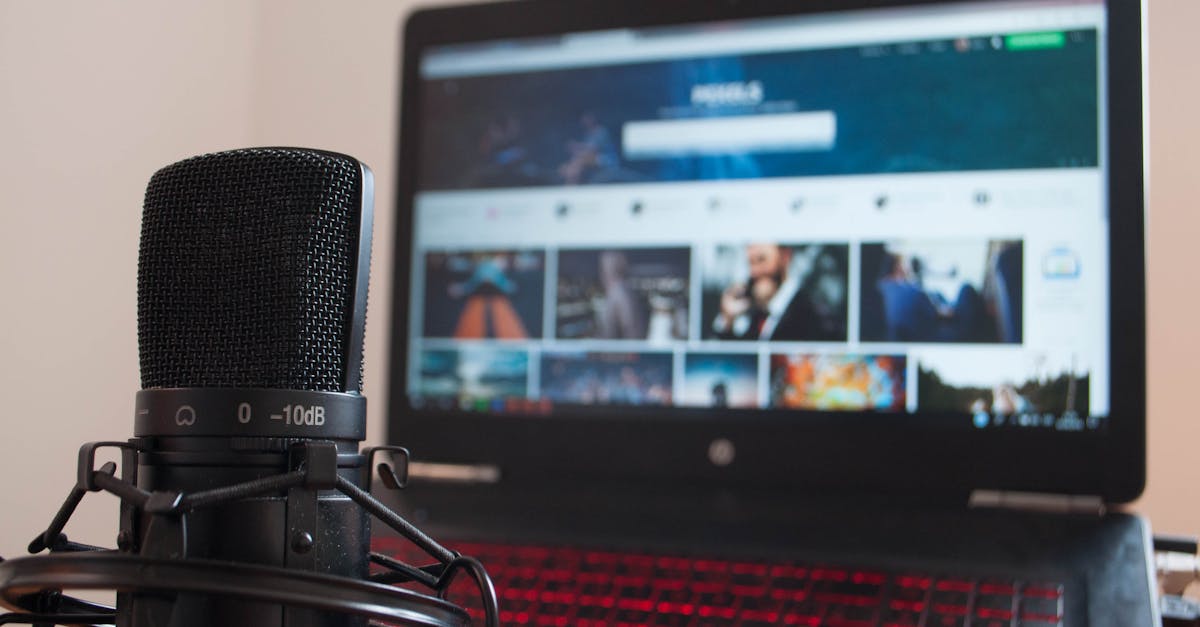
Why record your screen
Screen recording captures what appears on your display as a video. Use it to explain steps, save meetings, or document bugs in a clear, replayable format.
Recordings differ from screenshots because they show motion and audio. Choose a method based on whether you need system audio, microphone input, or a specific area of the screen.
Prepare before you record
Close unrelated windows and pause notifications to avoid interruptions. Check microphone and speaker levels so audio is clear and not distorted.
Decide on file format and save location if your tool offers that option. Short tests help confirm video and audio are recorded correctly before you do the full take.
Record on Windows with Xbox Game Bar
Windows 10 and 11 include Xbox Game Bar for quick recordings of apps and games. Enable it in Settings, then press Windows+G to open the overlay and use the Capture widget to start a recording; files save to the Videos\Captures folder.
For a one-key start or stop, use Windows+Alt+R. If you need to record a selected region or longer tutorials, consider the Snipping Tool’s video feature or a dedicated app.
Alternative Windows options
PowerPoint can record screen clips and export them as MP4 files from the Insert > Screen Recording menu. This is handy when you already use PowerPoint to build slides.
Third-party recorders offer advanced controls for resolution, codecs, and editing. Choose reputable software if you need precise quality or post-production features.
Record on a Mac with Screenshot or QuickTime
macOS provides a Screenshot toolbar (press Shift-Command-5) to record the entire screen or a selected portion and set options like microphone input and save location. This works on recent macOS versions.
QuickTime Player also records the screen and microphone and opens the result immediately for trimming. Use QuickTime if you prefer a separate app window for capture controls.
Record on iPhone and iPad
iOS has a built-in Screen Recording control accessible from Control Center. Add the control in Settings if it is not present, then tap the Screen Recording button to start a short countdown and begin recording.
Recordings save to Photos where you can trim or share them. Many apps prevent recording of protected video or DRM content, so test beforehand.
Record on Android devices
Most Android phones running recent versions include a built-in screen recorder in the quick settings panel. Pull down the quick settings and tap Screen Record to start; some OEMs supply extra options for resolution and audio source.
If your device lacks a recorder, use a trusted third-party app or connect the phone to a computer and capture via desktop software.
Basic recording settings to check
Confirm video resolution and frame rate if the tool exposes them. Higher settings produce smoother, larger files; lower settings save space and upload faster.
Choose audio sources: system audio, microphone, or both. Test a short clip to ensure levels are balanced and no echo or clipping occurs.
Stop, review, and edit
Stop recording using the tool’s stop control or the assigned hotkey. Immediately review the clip for visual glitches or missing audio to decide if a retake is needed.
Trim start and end points to remove dead space, and export in a common format like MP4 for compatibility. Basic editors built into the OS or free tools handle most simple edits.
Share and store recordings
Compress or lower resolution for easy sharing when high fidelity is not required. Use cloud storage or a managed folder to keep organized copies and version history.
Keep privacy in mind: redact or blur sensitive data before sharing, and remove recordings from shared folders when they are no longer needed.