
Connecting Your Phone to Your Computer: Practical Methods and Fixes
Actionable steps for USB, Bluetooth, Wi‑Fi transfer, tethering, and troubleshooting
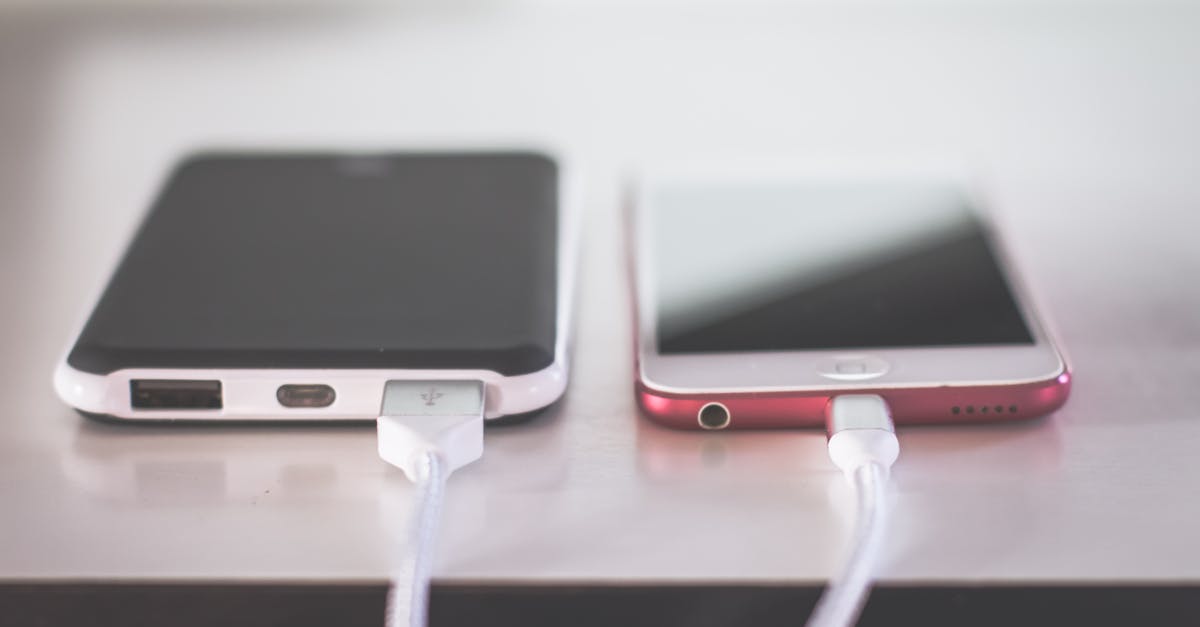
Struggling to move photos, share internet, or back up important files between your phone and computer? Connecting the two is the first step toward faster workflows and safer backups. This article outlines reliable methods, quick fixes, and stepwise checks to get your device talking to your PC or Mac without frustration.
Why you might want to connect your phone to a computer
There are many reasons to link a phone and a computer: file transfer, charging with data sync, using the phone as a modem, or developer tasks. Each use case favors a different method and setup.
Photo and video transfer for archiving or editing.
Full backups to local storage or cloud sync tools.
Tethering when you need internet on a laptop.
Debugging or advanced access using tools like
adb.
Knowing the right approach saves time and prevents data loss. Below are practical methods and when to use each.
Method 1: USB cable — the fastest and most reliable option
Wired connections often provide the best speed and stability for large transfers. Use a good quality cable and the correct port type (USB‑A, USB‑C, or Lightning).
Plug the cable into the phone and the computer.
On Android, swipe down and choose the USB mode such as File transfer (MTP) or Transfer files.
On iPhone, unlock the phone and tap Trust when the "Trust This Computer" prompt appears.
For Windows users, installing the appropriate drivers can solve recognition issues. Apple devices often work with iTunes or the Apple Mobile Device Support component for file access and backups.
Android file transfer on Mac: use Android's official transfer tool or a third‑party app.
iPhone to Windows: iTunes or the built‑in Photos import works for media.
Keep a spare, high‑quality cable in your bag. Cheap cables may only charge and not support data.
Android USB specifics and a quick developer tidbit
When connecting an Android phone, you may need to enable USB debugging for developer tasks. This is useful for running adb commands or pulling files from protected directories.
Open Settings > About phone > tap Build number seven times to enable Developer options.
Go to Developer options > enable USB debugging.
Connect the phone and accept the computer's RSA fingerprint on the device.
Android developer resources and official
adbinstructions are available from the Android Developers site.
adb devices
adb pull /sdcard/DCIM/Camera/ ~/Pictures/PhoneBackup/
adb push ~/Work/file.pdf /sdcard/Documents/
Those commands demonstrate listing connected devices and copying files to and from the phone. Use them only when you understand file paths and permissions.
Method 2: Bluetooth — wireless but slower
Bluetooth is convenient for small files and quick clipboard sharing but is not suitable for large photo libraries. Pairing is straightforward across most platforms.
Enable Bluetooth on both devices.
On the computer, open the Bluetooth settings and choose Add device.
Select the phone and confirm the pairing code on both devices.
Transfer speeds are modest compared to USB or Wi‑Fi. Use Bluetooth for contacts, single photos, or quick text snippets rather than bulk transfers.
Method 3: Wi‑Fi transfer tools and local networks
Wi‑Fi methods let you move large files without cables. This includes apps that create local web interfaces, SMB shares, or proprietary sync clients.
FTP or WebDAV servers hosted on the phone for direct access from a browser or file manager.
SMB shares when the phone supports file sharing on the local network.
Cross‑platform apps like Google Drive or OneDrive for syncing folders automatically.
For quick browser access, apps that start a local server on the phone provide a simple URL to paste in the computer browser and drag files between devices.
Microsoft documents Phone Link features that simplify wireless file access between Android and Windows devices at the Microsoft Phone Link help page.
Method 4: Cloud sync services for ongoing backups
Cloud services are ideal for continuous backups and cross‑device access. They remove the need for manual transfers, but depend on internet speed and storage limits.
Google Photos or iCloud Photos for media backed up automatically.
Google Drive, OneDrive, or Dropbox for documents and mixed file types.
Automatic camera uploads to keep local storage cleared.
Use cloud services for important files you want versioned and accessible anywhere. Check storage costs and enable two‑factor authentication for stronger security.
Tethering and using your phone as a modem
When a laptop needs internet, tethering can bridge the gap. Options include USB tethering, Bluetooth tethering, or creating a mobile hotspot over Wi‑Fi.
USB tethering offers the most stable connection and charges the phone simultaneously.
Mobile hotspot shares the phone's data over Wi‑Fi to multiple devices.
Bluetooth tethering is power efficient but slower.
Be mindful of data caps and cellular costs. Many carriers restrict or meter tethering differently from standard data usage.
Troubleshooting: common issues and fast fixes
If a connection fails, a checklist approach resolves most problems quickly. Start with the basics and escalate to driver or settings fixes.
Try a different USB cable and port; prefer original or certified cables.
Restart both devices after plugging in if the connection is unresponsive.
On Android, verify the USB mode is set to File transfer and not just Charging.
For iPhone, ensure the phone is unlocked and tap Trust when prompted.
Install or update drivers: Windows may require OEM drivers or iTunes for Apple devices.
If problems persist, check the device manager on Windows or system information on macOS to confirm the hardware is recognized. Removing old or conflicting drivers can help.
According to official Apple support pages, trusting the computer and having the latest software are often required steps for successful iPhone backups and transfers (Apple support documents).
Security and privacy considerations
Connecting a phone to a public or shared computer can expose sensitive data. Take precautions to protect accounts and files during transfers.
Use Trusted devices and avoid public terminals for private transfers.
Disable USB file transfer when not actively using it.
Encrypt sensitive files before transferring and use strong passwords on cloud accounts.
Keep operating systems and phone firmware updated to patch known vulnerabilities.
For developer access, only enable USB debugging when needed and revoke debugging authorizations after use.
Frequently asked questions
How do I transfer photos from my phone to a PC quickly?
Use a USB cable with File transfer (MTP) mode enabled for Android, or the Windows Photos import tool for iPhone. For many files, a local Wi‑Fi transfer app or direct cloud upload can speed the process without cables.
What if my computer does not recognize the phone?
Check the cable, try another USB port, confirm the phone is unlocked, and inspect USB mode settings. On Windows, update device drivers; on Mac, use the recommended transfer app for Android or keep iTunes updated for iPhone syncing.
Can I access app data from my phone on a computer?
Most apps store data in protected folders inaccessible without root or special tools. For backup or developer access, use official backup utilities or ADB where permitted by the platform.
Practical examples and workflows
Here are three real‑world scenarios and the best methods for each.
Photographer moving RAW files: Use a USB‑C cable or card reader for fastest transfer speeds directly into a photo editor.
Remote worker needing stable internet: Use USB tethering to the laptop for stable bandwidth and battery charging.
Frequent document sync: Set up a cloud folder with selective sync to keep files mirrored across phone and computer automatically.
These workflows reduce repetitive steps and keep files organized across devices.
Quick checklist before attempting any transfer
Confirm both devices have sufficient battery or are plugged in.
Choose the correct cable and port type for data transfer.
Update drivers or companion apps on the computer.
Back up critical files to the cloud before major moves.
Following this checklist prevents avoidable interruptions and ensures data safety.
Final recap and next steps
Connecting a phone to a computer can be seamless when you pick the right method: USB for speed and reliability, Wi‑Fi for convenience, Bluetooth for small quick transfers, and cloud services for ongoing backups. Troubleshooting starts with cables, modes, and permissions, and escalates to drivers or developer settings if necessary.
Start by identifying your main goal—transfer, backup, tethering, or debugging—and use the section above that matches your need. Keep cables and software updated, protect sensitive data during transfers, and use the appropriate tools for large or frequent moves.
Take action now: pick one method that fits your immediate need and run a short test transfer to confirm settings. With the right approach, connecting your phone to your computer becomes a routine task that speeds up workflows and protects your data.